PhotoFilter Gimmick
This page explains the PhotoFilter Gimmick (フォトフィルタギミック).
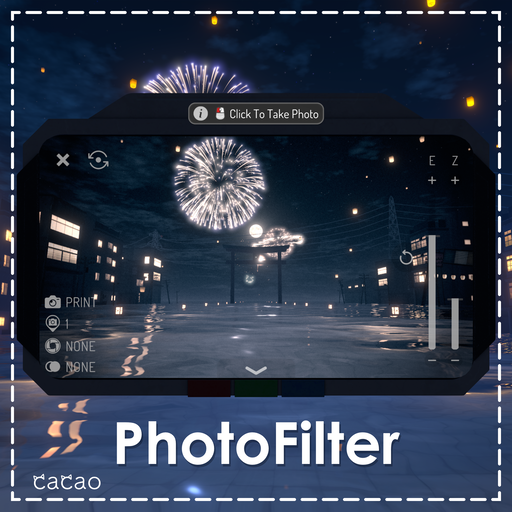
A gimmick that adds film-like color grading to photos taken with the VRChat camera.
- It is PC only. It does not work on Quest (it is hidden automatically on Quest)
- The filter applies only to the VRChat camera; the colors of your own view do not change
- It does not apply to mirrors
- All added parameters are local only, so the sync cost is 0 bits. It does not use any Expression Parameter slots either
Requirements
- VRChat SDK3 Avatars
- Modular Avatar (NDMF, which it depends on, is installed too)
These are not included. Install VRChat SDK3 Avatars and Modular Avatar with VCC, ALCOM or similar first, then import the PhotoFilter unitypackage.
Tested environment
| Package | Version |
|---|---|
| Unity | 2022.3.22f1 |
| VRChat SDK3 Avatars | 3.10.4 |
| NDMF | 1.14.4 |
| Modular Avatar | 1.18.1 |
Modular Avatar 1.18.1 requires NDMF 1.14.3 or later and earlier than 2.0.0. If you update dependencies, make sure they stay within this range.
Setup
- Drag and drop
PhotoFilterGimmick.prefabdirectly under your avatar
That's it. The materials, animator and menu are generated automatically by NDMF when the avatar is built. No generated files are left in your project, and when generation succeeds the PhotoFilterController component itself is also removed at build time.
In the PhotoFilterController inspector you can set Gradings, Enable Virtual Lens2 Compatibility and フィルタの表示範囲 (m) (filter display range). Gradings is the list of filters shown in the menu, in the same order as the menu. Do not change the Shader references inside 開発者設定 (developer settings).
Filter display range
フィルタの表示範囲 (m) sets the Bounds (the area used to decide whether to draw) of the Screen that draws the filter. The default of 5 m is fine for the normal camera.
When a drone camera moves away from your avatar, the Screen can stop being drawn partway through and the filter can cut out. If you use a drone camera and the filter cuts out, increase this value. After changing it, actually fly the drone and check that the filter stays on across the whole area you shoot in.
This setting only changes the area where the filter is shown. It does not change the strength or look of the filter. A value larger than needed keeps the Screen drawn even when far away, so use the smallest value that covers the area you need for shooting.
Usage
A PhotoFilter menu is added to your Expression Menu automatically.
| Item | Description |
|---|---|
| ON | Turns the filter on or off |
| Filter | Selects the filter (grading) |
| Intensity | Strength of the effect |
| Grain | Amount of film grain |
| Vignette | Darkening toward the edges |
16 filters are included by default.
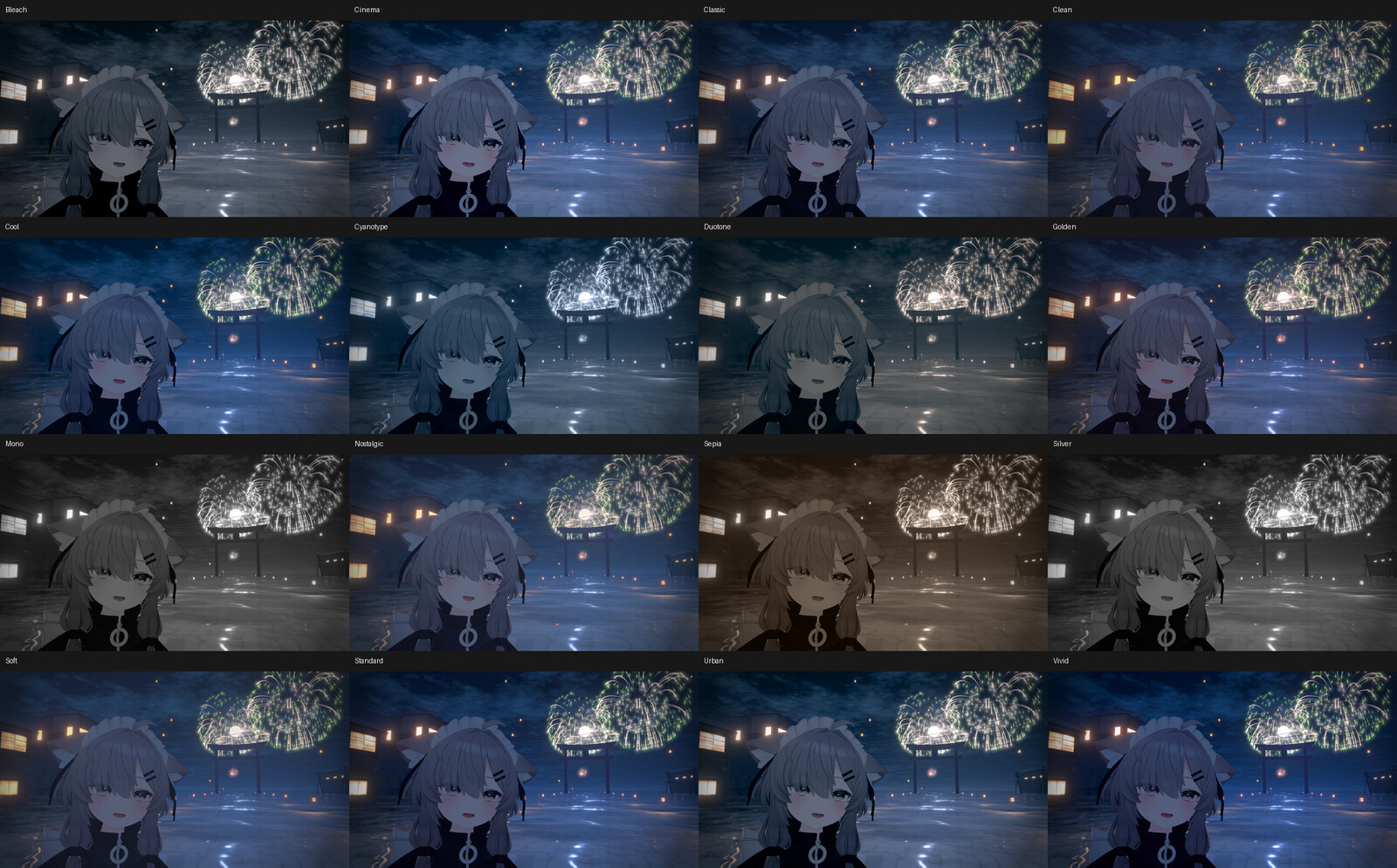
| Name | Look |
|---|---|
| Standard | Standard |
| Clean | Natural colors with lower contrast |
| Vivid | High saturation and high contrast |
| Soft | Soft tones with lifted shadows |
| Classic | Classic look with muted saturation |
| Nostalgic | Faded, warm retro look |
| Cinema | Cinematic look with cool shadows |
| Golden | Warm tones like the evening |
| Cool | Calm colors leaning cool |
| Urban | Hard, urban look with muted saturation |
| Mono | Monochrome with contrast |
| Silver | Film-like monochrome that keeps the tones |
| Bleach | Low saturation and high contrast |
| Cyanotype | Single blue tone |
| Duotone | Different colors for shadows and highlights |
| Sepia | Sepia monochrome |
Tips
Importing your own LUT
You can import .cube files exported from Lightroom, DaVinci Resolve and similar tools.
- Run
Assets > cacao > PhotoFilter > .cube を LUT テクスチャに変換(convert .cube to a LUT texture) to convert the.cube - Create a new
PhotoFilterGradingasset withCreate > cacao > PhotoFilter > Grading - Set the converted texture in the
LUTfield of the new asset - Add it to the
Gradingslist ofPhotoFilterController
The .cube file must meet these conditions.
- Only 3D LUTs are supported (1D LUTs are not)
- Only a
DOMAINof 0..1 is supported - Create the LUT in gamma space
The converted texture gets the required import settings (sRGB off / uncompressed / no mipmaps / Clamp) automatically. If you prepare a texture by hand, these settings are also required; compression breaks the colors.
Using it with VirtualLens2
By default, the filter applies only to the standard VRChat camera. Only if you want the filter on VirtualLens2 shots as well, enable Enable Virtual Lens2 Compatibility on PhotoFilterController.
When enabled, the effects applied change as follows.
| Color grading | Grain | Vignette | |
|---|---|---|---|
| Without VirtualLens2 | ✓ | ✓ | ✓ |
| With VirtualLens2 | ✓ | — | — |
Grain and vignette are effects that come after the lens rendering, so adding them to the VirtualLens2 capture would blur them afterwards. The VirtualLens2 capture also has padding around it, which would shift the vignette's center away from the actual frame, so they are excluded on purpose.
When you use VirtualLens2, turn off the focus of VRChat's own camera. Otherwise the blur is applied twice.
Grain and focus (depth of field)
The focus of the standard VRChat camera is a post process applied after the scene is drawn. This gimmick runs while the scene is drawn, so the blur is applied after the grain. Real film works the other way around: "the lens blurs, then the grain appears".
If you don't like the grain melting into blurred areas, turn off the focus of the standard camera or set Grain to 0. The default for Grain is 0.
Changelog
- v1.0.1 (2026/08/22) Added the Bounds setting
- v1.0.0 (2026/08/21) Released