CACAO WATCH
This page explains CACAO WATCH (腕時計).
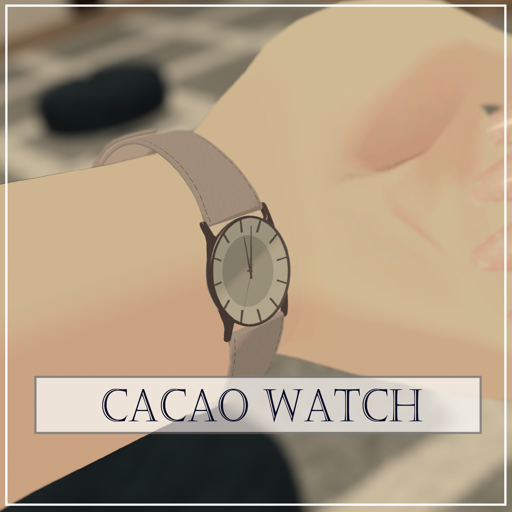
CACAO WATCH, OSC version
Before you start
If you find mistakes in this document or anything that should be added, please contact @_0001cacao.
Updates are listed in the changelog at the bottom of the page. Please check it from time to time.
Modular Avatar version (recommended)
- Drag and drop
OSC_Watch.L_MA.prefabunder your avatar (OSC_Watch.R_MA.prefabfor the right hand) - Adjust the size and other settings to your wrist
- Done!
Old version (manual setup)
These are the steps for setting it up without Modular Avatar.
1. Import
- Import the latest lilToon
- Import Watch.unitypacage
2. Placing the Prefab
- Drag and drop Watch (Prefab Asset) into the Hierarchy
- Move, resize and adjust it with shape keys to fit your avatar
- Place it in the right spot in your avatar's Armature
- Right-click > Unpack Prefab
- Remove the Animator in the Inspector (right-click > Remove Component)
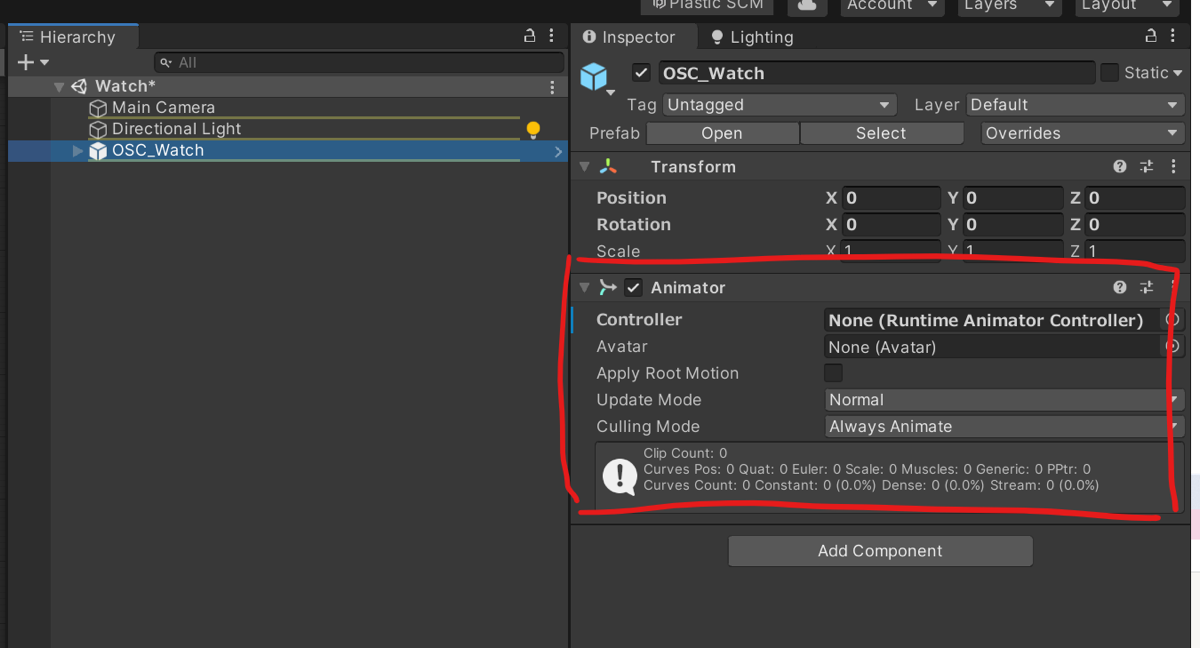
3. Setting up the FX layer
Add the contents of Watch_OSC (Animator Controller) in Watch_OSC>OSC_anim as they are to the FX layer under Playable Layers in your avatar's VRC Avatar Descriptor.
(The "AnimatorControllerCombiner" in "VRCAvatars3Tools" from "がとーしょこらのおみせ" makes setting up the FX layer easy.)
VRCAvatars3Tools - がとーしょこらのおみせ - BOOTH
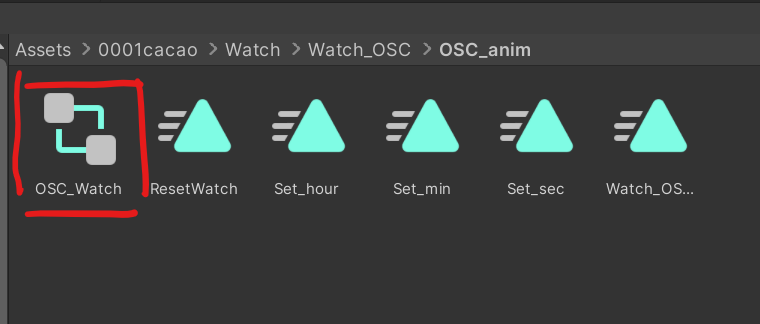
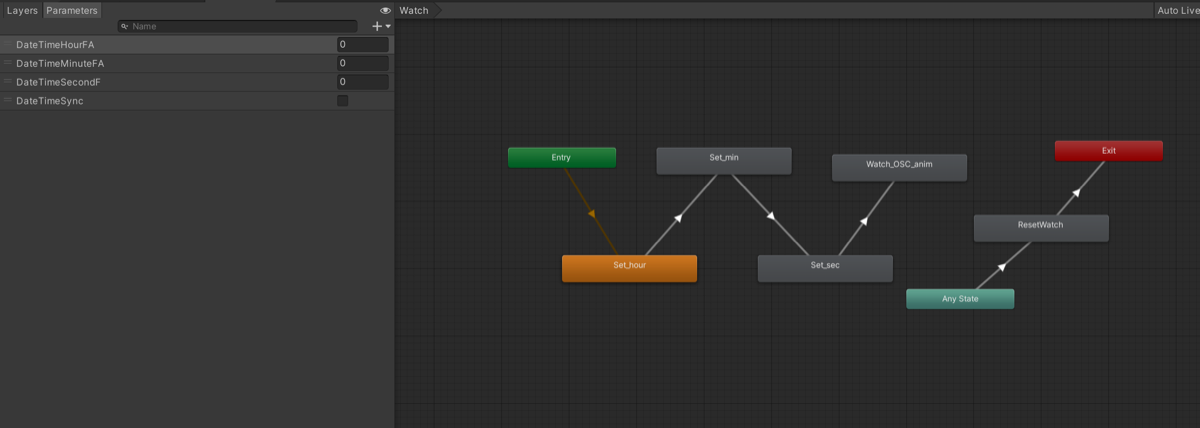
- Copy both the Layers and the Parameters correctly.
- Also check that each Animation has Write Defaults off.
4. Changing the animation paths
To play the watch animations from the FX layer, the animation paths need to be fixed.
Change the paths of all animations under OSC_anim to the correct ones.
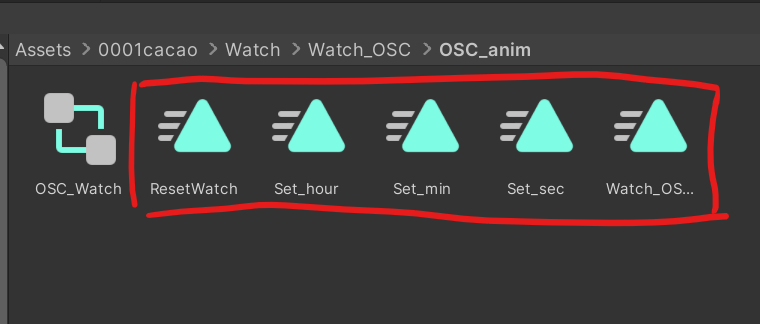
- The correct path depends on where you placed the watch.
- For example, open the Animation window, select Set_hour and press F2 to show the path.
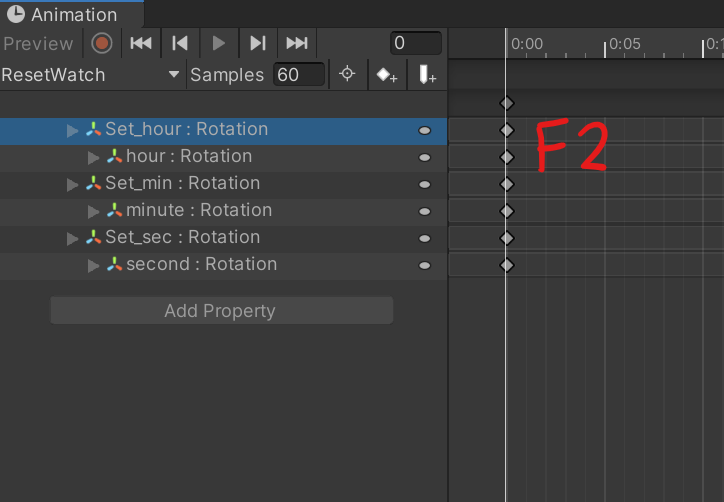
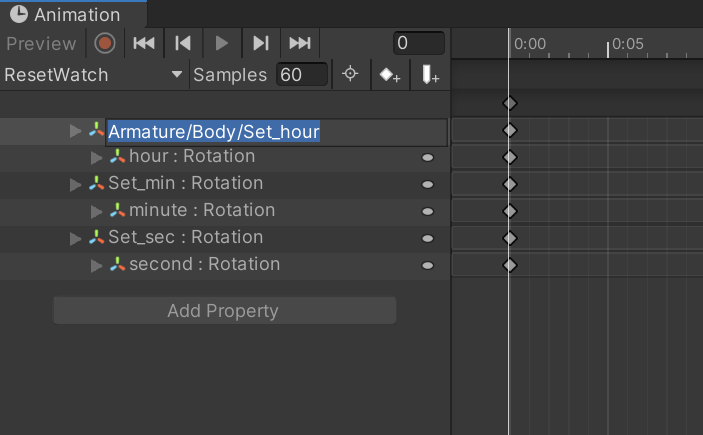
- Change this path to the path relative to your avatar.
- For example, if you placed it under the Lower Arm of the left arm, add Armature/Hips/Spine/Chest/Shoulder.L/Upper Arm.L/Lower Arm.L/OSC_Watch to the start of the path. This depends on where you placed the watch and on your avatar's bone structure.
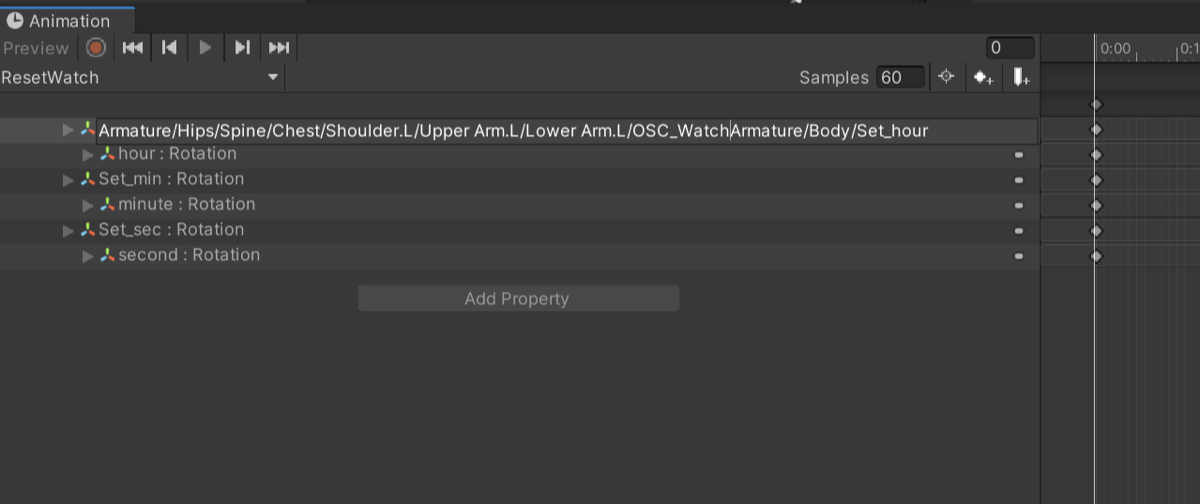
- In the same way, change the paths of hour, Set_min, minute, Set_sec and second, and also correct the paths of every other animation under OSC_anim.
5. Setting up the Expression Menu and Expression Parameters
Set the Menu and Parameters under Expressions in the VRC Avatar Descriptor.
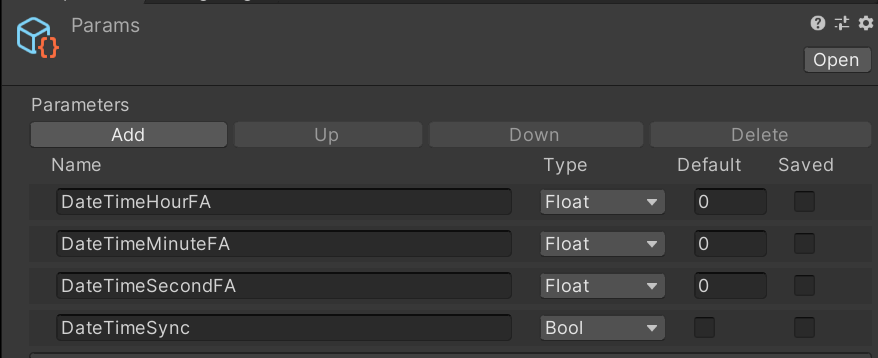
- Add the parameters in Params of Watch_OSC to your avatar's parameters as they are. (It will not work if the Name or Type is wrong.)
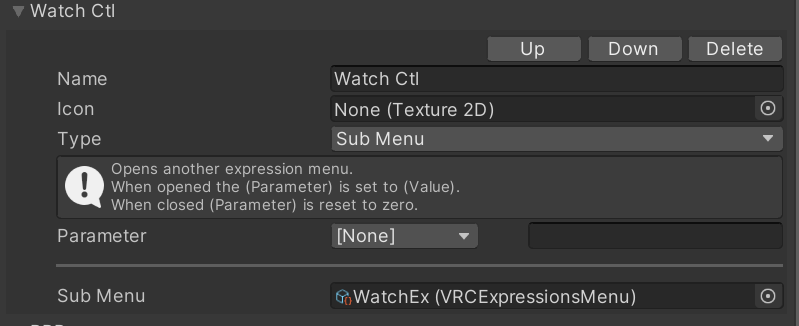
- Next, select your avatar's Menu and add a control like the one below with Add Control. You can set the Name and Icon as you like.
Uploading the avatar
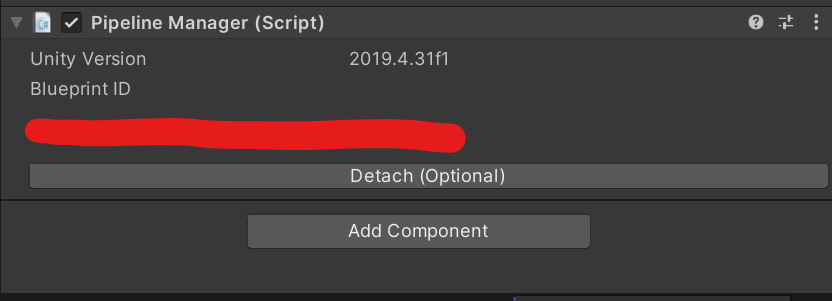
- If you changed the Expression Parameters, Detach the avatar's Blueprint ID and upload it again as a new avatar.
Usage
- If OSC is not enabled in VRChat, enable it.
- Supported software must be running on your PC. Use https://github.com/mezum/vrcwatch or https://0001cacao.booth.pm/items/3694697.
- If you stay in the same instance for a long time, the watch may drift a little. It may also drift for other reasons. In that case, run Sync from the Expression Menu.
CACAO WATCH, standard version
Requirements
Setup
- Drag and drop
Watch.L_MA.prefabunder your avatar (Watch.R_MA.prefabfor the right hand) - Adjust the size and other settings to your wrist
- Done!
Setting the start time in Unity
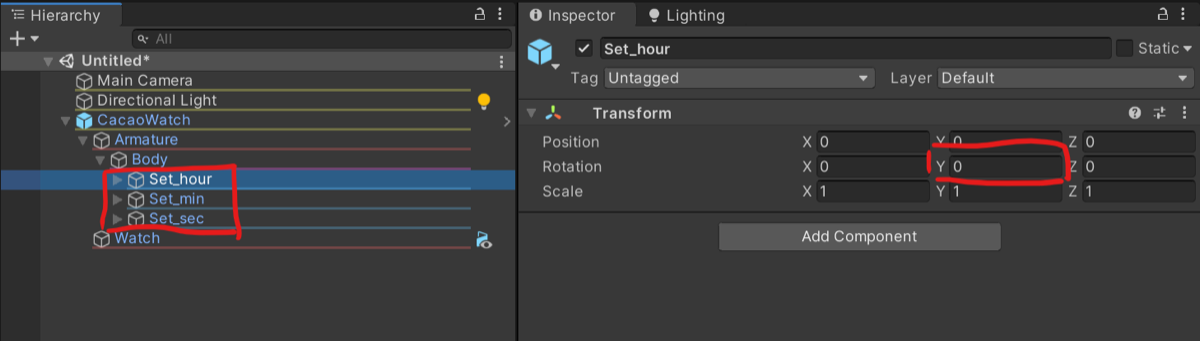
- Set Transform.Rotation Y of Set_hour, Set_min and Set_sec under CacaoWatch>Armature>Body to start from any time you like.
- Reference: clock angle calculation (時計算)
Overview
- Animated hands The watch shows how long you have been in the world, not the real time. It resets when you change worlds or avatars. You can set the start time you like in Unity (for example, starting at 3:00 or 10:00).
- Shape keys for adjustment
- 12 color variations
- psd file for easy texture customization
Main contents
- fbx file (1 type)
- Texture files (12 types)
- UV maps
- psd file
- unitypackage file
Contents of the unitypackage
- Configured Prefab (1 type)
- Texture files (12 types)
- Materials
Prohibited
- Reselling or redistributing
Disclaimer
- The creator, cacao, takes no responsibility for any trouble, loss or damage caused by using this model.
Changelog
- v1.0 (2022/02/18) Released
- v2.0 (2022/03/02) Added the OSC real-time clock
- v2.1 (2022/03/07) Fixed an animation bug (OSC version only; see the docs for details)
- v2.2 (2023/06/06) Added the Modular Avatar version
- v2.3 (2024/04/06) Modular Avatar support for the standard version
Other
- In the settings of Assets>0001cacao>Watch>Materials>Watch, change the texture under Color Settings > Main Color (色設定 > メインカラー) to change the texture. Use any texture you like.
- You can remove the CACAO logo by turning off Color Settings > Main Color 2nd (色設定 > メインカラー2nd).
- A psd file with each part on its own layer is included. It makes texture customization easy, so please make use of it. Only textures you create yourself from the psd file may be resold or redistributed.